I originally posted this on the wordpress.org forums without realizing that this official image is created by Docker and not by Wordpress. If there is a better place to post this to get support for a specific image please let me know.
My setup (so far) uses docker swarm to run the wordpress:5.4.0-apache image networked with a msyql:5.7.29 image for the database. I copied the docker-compose file from the readme on the docker image page. It maps port 8080 on the host port 80 for the wordpress container. The issue seems to be that this breaks the REST API since it will try to hit localhost:8080 inside the container rather than localhost:80. WordPress reports this in the Tools > Site Health section of the dashboard as a critical error:
cURL error 7: Failed to connect to localhost port 8080: Connection refused
If I change the port mapping to expose 80 to the host, then everything works as expected.
Is there a Docker only workaround so that I can expose any port I want to the host and still have the loopback call work? Or would any solution require changes to wp-config.php or some other wp file?
If this is a limitation of using wordpress with docker, then the documentation needs to fix the error in the docker-compose file and make a note of this limitation. Or if there is a way to use a different port successfully, then that should be documented.
Other system details:
– Docker for mac 2.2.0.4
– Docker engine 19.03.8
– Compose 1.25.4
– macOS catalina 10.15.3
Add/edit your apache ports at /etc/apache2/ports.conf
Listen 80
Listen 8080 # The new port
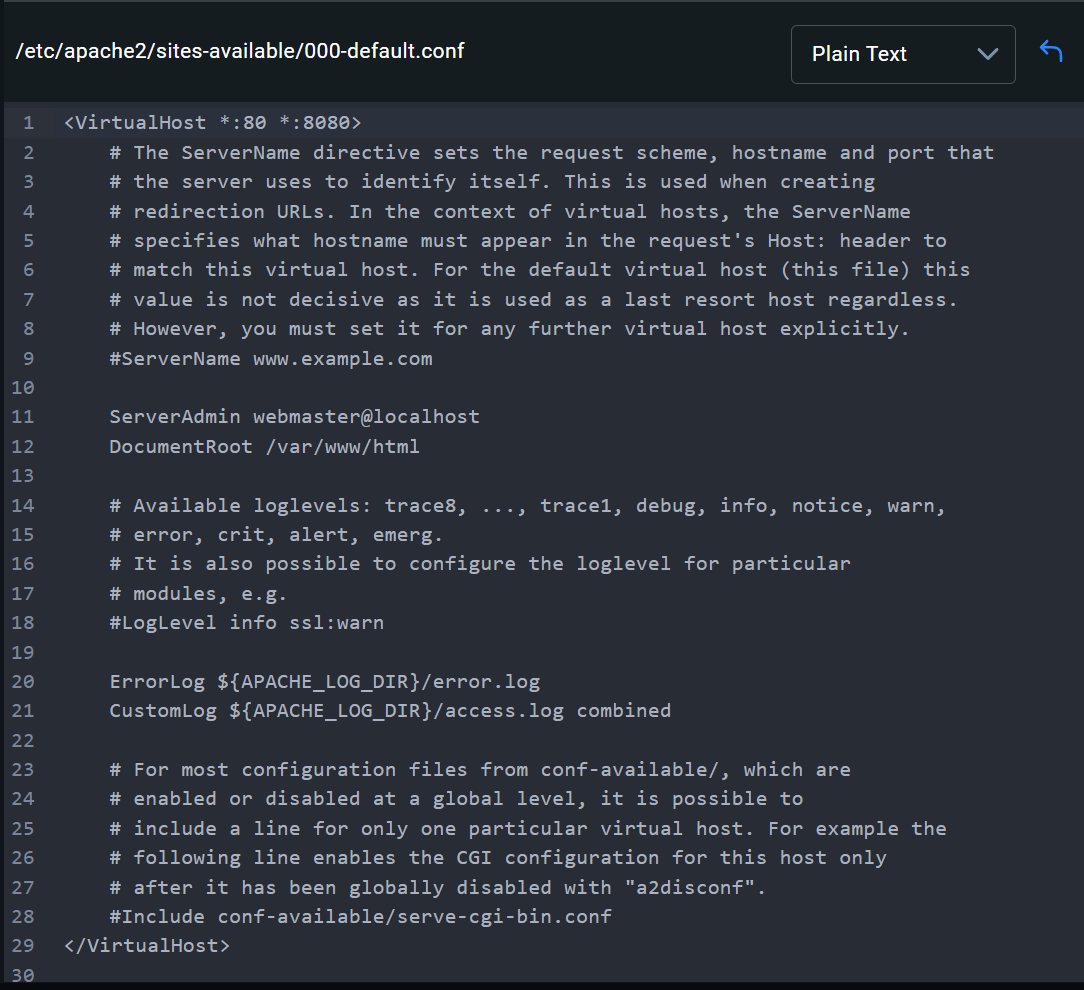
Add/edit your apache config at /etc/apache2/sites-available/000-default.conf
<VirtualHost *:80 *:8080> # Appending new port inside VirtualHost tag
# Contents inside VirtualHost tag are unchanged
</VirtualHost>
You can also use sed to modify the apache stuff inside a dockerfile. I copy the official docker file for wordpress and add some configuration steps to make my life easier. You can add the step to modify the apache files like so:
# Modify Apache configuration
RUN sed -i 's/Listen 80/Listen 80\nListen 8080/' /etc/apache2/ports.conf && \
    sed -i 's/<VirtualHost *:80>/<VirtualHost *:80 *:8080>/' /etc/apache2/sites-available/000-default.conf;
I really hope this helps others that encounter this issue too!
For sure you have already figured out why this works, but for someone else who might have the same question:
It instructs the Apache web server, which is running inside of the Docker container (based on an Apache_WP image) and listening to port 80 (default) to start listening to a second port 8080. This second port is the one that Docker container exposes on the host. The numbers of both ports are declared in the ports: section of the apache_wp container’s settings in docker’s compose.yaml (or docker-compose.yml) file.
When WP is accessed from outside of the container via port 8080, for example via http://localhost:8080 from a browser on the Docker host then all requests coming through Docker are automatically mapped by Docker to port 80 on which the apache server running inside the container is listening. While WP is configured to use the external port number 8080 then Apache inside of the container is configured to listen on port 80. Since WP REST API requests originate from inside of the container (not outside for which WP is configured) these should use the default port 80 but REST API retreaves the port number to be used from the WP configuration (where it is set to 8080) and attempts to use it for loopback on the internal localhost inside the container which does not listen to 8080 but instead listens to port 80. Adding 8080 as a second port to listen to, as described by shawnlong636, will enable the REST API requests to reach the Apache server and thus resolve this issue.
It took me a while to understand, so hopefully I got it right now here in the explanation. At least this advice resolved the REST API issue in my setup where I run my Apache WP dev enfironment in a Docker container on a Win10 machine. Also noticed that it works fine without defining the extra_hosts: section at all. Only steps 2 and 3 were enough.
Realized that the extra_hosts: directive is required after all, as it adds the entry to the /etc/hosts file in the container. It woked for me without it because I had, during the struggle, manually added a line with my dev domain name local.testsite.my-domain.com:127.0.0.1 into the /etc/hosts. This of course disappears on next compose if it’s not defined under extra_hosts: in the Docker compose.yaml.
I’m new to Docker and recently switched to it for local web development on Windows 11. I’ve encountered the same errors you described in this topic. I also created another thread on this forum seeking help to resolve it. I tried all the steps you described in your replies here:
1. I added the following to my Docker Compose file:
Please don’t spam the forum with your issue, please don’t hijack other posts and please don’t harass people by directly adding them.
This is a Docker user-to-user forum, we are trying to be helpful.
This config has probably not the desired result:
extra_hosts:
      -  "host.docker.internal:127.0.0.1"
host.docker.internal is automatically set by Docker Desktop. If you need to set it manually with Docker Engine, then it’s usually host.docker.internal:host-gateway.
You complain about Docker container shutdown. It would be really helpful to provide full compose file and docker logs of the container.
By default containers from a compose file are attached to a common Docker network. WordPress would connect to DB by database service name. A WordPress plugin should be able to access WordPress by localhost, this should just work inside container.
WordPress needs to publish ports, so it’s reachable from the outside. (Or you use a reverse proxy.) On the same PC you should be able to access it via localhost.
Note that WordPress can be really mis-behaving because it insists on its domain and path it has been setup with. It will always try to redirect to the original values. Watch the access log for redirects.
I’ve just tried to start the container, but it didn’t work again. Here are the logs:
AH00558: apache2: Could not reliably determine the server's fully qualified domain name, using 172.18.0.3. Set the 'ServerName' directive globally to suppress this message

AH00558: apache2: Could not reliably determine the server's fully qualified domain name, using 172.18.0.3. Set the 'ServerName' directive globally to suppress this message

[Wed Feb 04 15:24:14.125503 2026] [mpm_prefork:notice] [pid 1:tid 1] AH00163: Apache/2.4.65 (Debian) PHP/8.5.0 configured -- resuming normal operations

[Wed Feb 04 15:24:14.125809 2026] [core:notice] [pid 1:tid 1] AH00094: Command line: 'apache2 -D FOREGROUND'

[Wed Feb 04 15:27:49.876911 2026] [mpm_prefork:notice] [pid 1:tid 1] AH00170: caught SIGWINCH, shutting down gracefully

AH00526: Syntax error on line 6 of /etc/apache2/ports.conf:

Listen requires 1 or 2 arguments.

AH00526: Syntax error on line 6 of /etc/apache2/ports.conf:

Listen requires 1 or 2 arguments.

AH00526: Syntax error on line 6 of /etc/apache2/ports.conf:

Listen requires 1 or 2 arguments.
Update: I have 4 more .yml files for other containers, and I’ve noticed that after I reset the first container’s compose.yml, the other containers stopped loading as well, along with their DBs. They don’t even show logs when they fail to start. Do I have to reset them all together?
I close this topic, because you had your own and we should continue there. Asking in another open topic is fine, so no problem, but the new discusion starts to be longer then the original one after getting confirmation on working recommended solution. And I see that part of your problem is understanding the recommendations, so let’s continue it in the original topic.
Thank you for your understanding.
I would like to leave the last comment before the new conversation here: